Fundamentals
Git, Part 4: A Remote Is Another Repository
A remote is another repo; fetch copies commits and updates tracking refs; pull merges into your branch; push publishes your refs.
- Planted
- Last tended
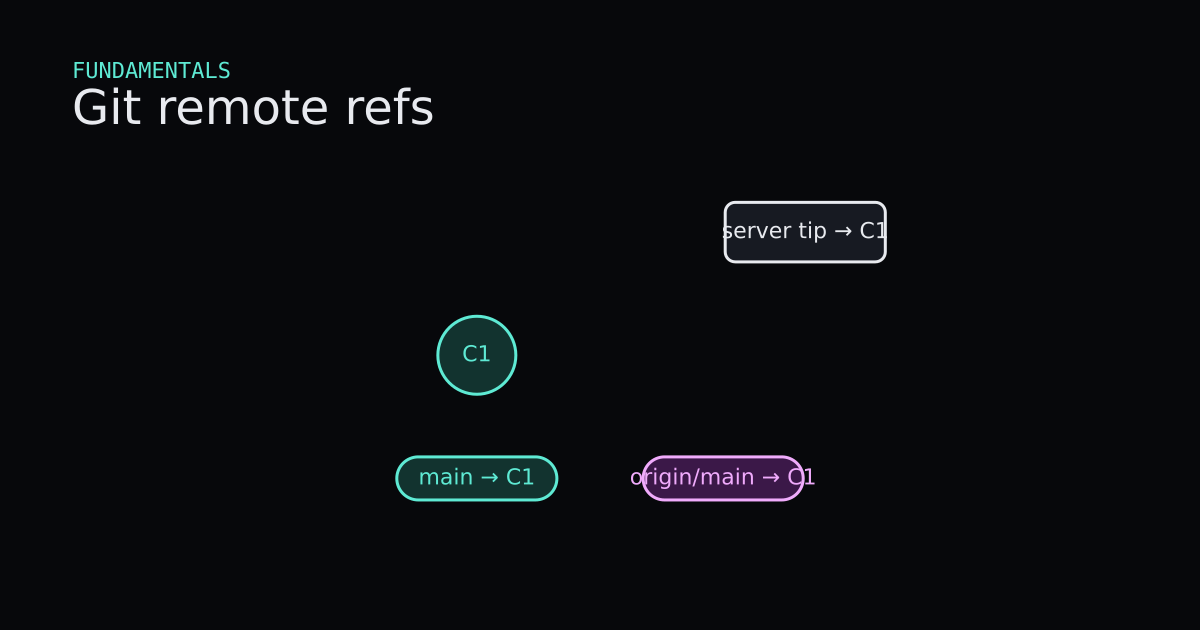
Parts 1–3 stayed inside one folder on your machine. Collaboration adds a second copy of the same object database somewhere else—a remote. After this post you should read origin, origin/main, and main as three different refs, and predict what fetch, pull, and push will move before you run them.
This is Part 4 of a six-part series. We still avoid “click here on a website” tutorials. Hosting products wrap these commands; the mechanics are plain Git.
What Is It?
A remote is a nickname for another repository’s location. git clone creates your local repo, records that nickname (usually origin), copies branches and commits, and sets remote-tracking branches such as refs/remotes/origin/main. Those tracking refs remember “where origin’s main was the last time we successfully talked to it.” They are not your checkout branch. Your everyday branch is refs/heads/main, often shown as main.
git fetch contacts the remote, downloads any missing commits and objects, and updates remote-tracking refs. It does not change main or your working tree. After fetch, origin/main may point at a newer commit while main still points where it did before.
git pull is fetch plus an integration step—by default git merge into your current branch. That is why pull can create a merge commit or fast-forward main when you were behind. git pull --rebase replays your local commits on top of the updated tracking ref instead; Part 5 goes deeper on replay.
git push sends your local commits to the remote and asks the remote to move its branch ref—usually so origin/main matches what you push from main. The remote rejects the push if that would discard commits someone else already published unless you force (a team policy topic for Parts 5–6).
When Is It Used?
Use fetch when you want to see what changed upstream without touching your files—before code review, before deciding merge versus rebase, or when you only need to update origin/main for git log origin/main..main.
Use pull when you are ready to integrate upstream work into the branch you have checked out and a merge (or configured rebase) is acceptable right now.
Use push when local commits on a branch should become part of the remote’s history and you have permission to move that remote ref.
You do not need pull for every fetch. Many teams fetch often and merge or rebase deliberately. You also do not push every commit the moment it exists—especially when CI or review must pass first. Part 6 names how teams gate that movement.
Interactive Demo
Watch origin as a second repo bubble and origin/main as a label that lags or catches up. Fetch should copy commits and slide the purple tracking ref without moving main. Pull should move main toward origin/main. Push should send commits the other direction and align the remote tip.
Interactive Demo
git commit only moves your local branch. Remote-tracking refs and the server stay where they were until you push or fetch.
Commit nodes C1 and optionally C2 form a chain. Pills label main and origin/main with arrows to their tips. Readouts show both tips. git commit advances local main only. git push slides origin/main to match. When the server already has C2, git fetch updates origin/main without touching local main, then git pull fast-forwards local main. Reset clears to both refs on C1.
- Both main and origin/main start on C1. The server tip matches.
- A teammate pushed C2 to the server. Your clone has not fetched yet.
- git fetch copies the remote tip into origin/main without moving local main.
- git pull fast-forwards local main to the same commit as origin/main.
- After Reset, commit locally and push to send your own C2 upstream.
- git commit grows C2 on main only.
- git push updates origin/main and the server to match your tip.
local main: C1 · origin/main: C1
Code
Two folders on one machine: origin plays the upstream repo, clone is what git clone produced. Paths shortened. Verified with Git 2.43.0.windows.1.
$ # in .../origin
$ git init -b main
$ git commit -m "Initial"                 # a39342e

$ # in empty .../clone
$ git clone ../origin .
Cloning into '.'...
done.

$ git remote -v
origin  .../origin (fetch)
origin  .../origin (push)

$ git branch -a
* main
  remotes/origin/HEAD -> origin/main
  remotes/origin/main
After clone, main and origin/main both start at a39342e. HEAD follows local main.
$ # teammate commits in .../origin
$ git commit -m "Upstream second"         # 31e6b67

$ # back in .../clone
$ git fetch origin
From .../origin
   a39342e..31e6b67  main       -> origin/main

$ git log --oneline --decorate --all
a39342e (HEAD -> main) Initial
31e6b67 (origin/main, origin/HEAD) Upstream second

$ git status
On branch main
Your branch is behind 'origin/main' by 1 commit, and can be fast-forwarded.
  (use "git pull" to update your local branch)
Fetch updated origin/main but left main on a39342e. Status compares those two refs—that is the “behind by 1 commit” line.
$ git pull
Updating a39342e..31e6b67
Fast-forward
 readme.txt | 2 +-
 1 file changed, 1 insertion(+), 1 deletion(-)

$ git log --oneline --decorate -2
31e6b67 (HEAD -> main, origin/main, origin/HEAD) Upstream second
a39342e Initial
Pull fast-forwarded main because no local commits sat on top of a39342e. If you had local commits, pull would merge or rebase per your config—same shapes as Part 2 and Part 5.
$ # after a new local commit on main
$ git push origin main
Push sends objects the remote lacks and updates refs/heads/main on origin. When your history is a strict advance of origin/main, the remote fast-forwards. When it is not, Git refuses until you integrate or follow a team rule about force.
Code
Code
Read onlyTooling/Git/remote-refs.sh
Read only
# Local main and origin/main (remote-tracking)
git status

# Record a commit locally (main moves, origin unchanged)
git commit -m "Local work"

# Copy local commits to the remote; origin/main updates
git push origin main

# Download new remote commits into remote-tracking refs
git fetch origin

# Fetch plus fast-forward when your branch is strictly behind
git pull origin main
Advantages and Disadvantages
+ Advantages
- fetch separates download from merge, so you can inspect origin/main before changing your branch or working tree.
- remote-tracking refs make it obvious when you are ahead, behind, or diverged without guessing.
- push and fetch are symmetric ideas: commits and refs move between two full repositories, not a magic cloud folder.
− Disadvantages
- Three ref names for one logical branch confuse people until they draw local main versus origin/main.
- pull hides fetch plus merge, which surprises you when a merge commit appears unexpectedly.
- push rejection on non-fast-forward is correct Git behavior but feels like an error until you understand shared tips.
Tips
- 01After clone, remember origin/main is a bookmark updated by fetch—not the branch you edit unless you checkout that ref on purpose.
- 02Run git fetch origin regularly, then git log --oneline main..origin/main and origin/main..main to see incoming and outgoing commits.
- 03Prefer git pull only when you are ready to integrate; otherwise fetch and decide merge or rebase explicitly.
- 04Before push, run git status and ensure your branch tracks the remote you intend; git push -u origin main sets upstream once.
- 05When status says diverged, fetch first, then merge or rebase—do not force push a shared branch without a team rule.
- 06Use git remote -v and git branch -vv to see URLs and which tracking ref each local branch follows.
Series
- Part 1: Git, Part 1: Commits Are Snapshots, Branches Are Sticky Notes
- Part 2: Git, Part 2: A Merge Joins Two Lines of Snapshots
- Part 3: Git, Part 3: Restore, Revert, and Reset Move Different Things
- Part 4: Git, Part 4: A Remote Is Another Repository
- Part 5: Git, Part 5: Rebase Replays Commits Onto a New Parent
- Part 6: Git, Part 6: How a Team Agrees on History
Next up
Next in the path: Git, Part 5: Rebase Replays Commits Onto a New Parent