Fundamentals
Git, Part 3: Restore, Revert, and Reset Move Different Things
Restore fixes files and staging; revert adds history; reset moves the branch tip—and hard reset can discard uncommitted work.
- Planted
- Last tended
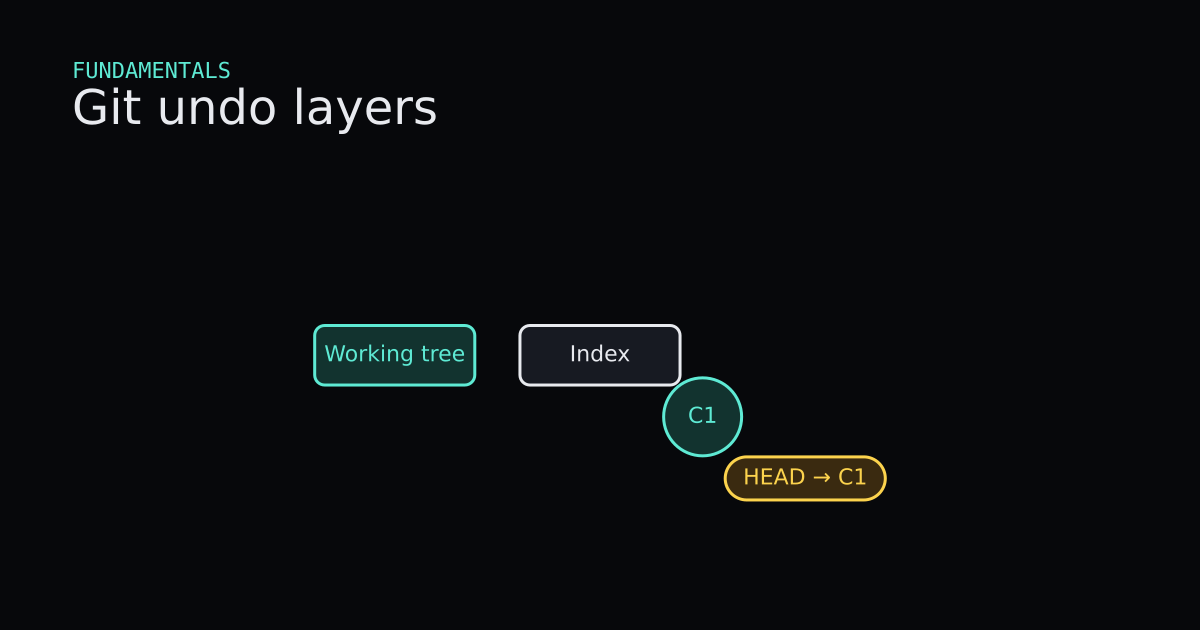
Part 1 named three layers: working tree, index, and commits on a branch. Part 2 showed how merge moves labels. Undo is not one button. After this post you should pick restore, revert, or reset by asking which layer you mean to change, and know what can be lost before you run the command.
This is Part 3 of a six-part series. Remotes, rebase, and team workflows come next. None of these commands is “safe” in the abstract—each one is safe for a specific intent when you understand what it touches.
What Is It?
git restore (Git 2.23+) puts file contents back in line with a chosen snapshot. With no extra flags it updates the working tree from the index. With --staged, it copies from HEAD into the index and leaves your working tree alone unless you also pass --worktree. It does not move branch tips or erase commits.
git revert adds a new commit that applies the inverse of an earlier change. History stays public and linear in time: readers still see the mistake and the fix. Use it when the bad commit is already on a branch others might have fetched.
git reset moves the current branch tip (and usually HEAD with it). --soft moves the tip only; staged changes stay staged. --mixed (the default) moves the tip and resets the index to match; unstaged edits in the working tree usually remain. --hard moves the tip, resets the index, and overwrites the working tree to match. Commits that no branch name reaches can become hard to find, though their ids often remain in git reflog for a while.
Older Git used git checkout -- file and git reset for overlapping jobs. Prefer git restore for file and staging undo, and treat reset as “move my branch pointer (and maybe my tree).”
When Is It Used?
Reach for git restore when you edited a tracked file and want the last committed contents back, or when you **git add**ed too much and want to unstage without dropping working-tree edits.
Reach for git revert when a commit is already shared and you need a forward fix on the same branch—production hotfixes on main are the classic case.
Reach for git reset --soft when you committed too early but want the same changes still staged for a better message or split. Use --mixed when you want commits gone from the branch but files still edited in the folder. Use --hard only when you accept losing uncommitted work and want the folder to match an older tip exactly—often after a local experiment you never pushed.
Do not use reset --hard to “undo” a push others already built on. That rewrites history they rely on. Part 5 covers rebase and force-push risk; Part 4 covers why shared refs matter.
Interactive Demo
Press Watch demo or step the controls. Watch which layer lights up: working tree, index, or branch tip. restore should pulse the file layer without adding a commit node. revert should add a new commit on top. reset --hard should slide the branch label backward and align the tree readout with the older tip.
Interactive Demo
Edits live in the working tree until you stage or commit them. Nothing moves HEAD yet.
Three areas show Working tree, Index, and a commit node C1 with HEAD pointing at it. Edit file marks the working tree dirty. git restore clears it. git add copies changes into the index. git restore --staged empties the index while the tree may stay dirty. git commit clears both and advances to C2. git revert adds C3. git reset --soft moves the tip back but keeps the index. git reset HEAD~1 also clears staging while leaving working-tree edits. Reset restores the starting frame.
- Start clean: working tree, index, and commit C1 with HEAD on the tip.
- edit file dirties only the working tree. Commits and the index stay put.
- git add copies those edits into the index.
- git commit writes C2 and clears both layers. HEAD jumps forward.
- git revert HEAD adds C3 on top. History is not deleted.
- git reset --soft HEAD~1 slides the tip back but leaves the index staged.
- git reset HEAD~1 also unstages while keeping working-tree edits. Reset to replay.
tip: C1 · WT dirty: false · index staged: false
Code
Throwaway repo on the same machine. Hashes will differ on yours; the layer behavior will not. Verified with Git 2.43.0.windows.1.
Restore working tree and unstaged index
$ git init -b main
Initialized empty Git repository in .../git-undo-demo/.git/

$ # note.txt contains "hello"
$ git add note.txt
$ git commit -m "Add note"
[main (root-commit) cd5b79b] Add note
 1 file changed, 1 insertion(+)

$ # edit note.txt to add a "wip" line without committing
$ git status --short
 M note.txt

$ git restore note.txt
$ git status --short
$ # clean: working tree matches index again

$ git add note.txt
$ git status --short
M  note.txt

$ git restore --staged note.txt
$ git status --short
 M note.txt
M (space then M) means unstaged edits. M means staged. restore --staged pulled the index back toward HEAD while the wip line stayed in the folder.
Revert creates a forward undo commit
$ git add note.txt
$ git commit -m "WIP line"
[main 3be37c4] WIP line
 1 file changed, 1 insertion(+)

$ git revert --no-edit HEAD
[main 8ad2792] Revert "WIP line"
 1 file changed, 1 deletion(-)

$ git log --oneline -3
8ad2792 Revert "WIP line"
3be37c4 WIP line
cd5b79b Add note
The middle commit still exists. 8ad2792 is the fix readers will clone. That is why revert is the polite tool on shared branches.
Reset soft, mixed, and hard
Continuing from 8ad2792 after the revert, reset --soft HEAD~1 drops the revert commit and leaves the WIP change staged at tip 3be37c4.
$ git reset --soft HEAD~1
$ git status --short
M  note.txt
$ git log --oneline -1
3be37c4 WIP line

$ git reset HEAD~1
Unstaged changes after reset:
M       note.txt
$ git log --oneline -1
cd5b79b Add note
After that --mixed step, the WIP line commit is no longer on the branch; the wip line remains unstaged in the working tree until you discard or recommit it. A fresh repo makes the same pattern easy to see without the revert detour:
$ git commit -m "WIP line"              # tip 3be37c4
$ git reset --soft HEAD~1
$ git log --oneline -1
cd5b79b Add note
$ git status --short
M  note.txt
--soft moved the tip to cd5b79b but kept the WIP change staged.
$ git -c core.autocrlf=false init -b main
$ git commit -m "Add note"              # dd4a058
$ git commit -m "Extend note"           # 3375b22

$ git reset --hard HEAD~1
HEAD is now at dd4a058 Add note

$ git reflog -3
dd4a058 HEAD@{0}: reset: moving to HEAD~1
3375b22 HEAD@{1}: commit: Extend note
dd4a058 HEAD@{2}: commit (initial): Add note
--hard moved main to dd4a058 and made the working tree match. Commit 3375b22 is not on the branch anymore, but reflog still names it. git switch -c recover 3375b22 (or git reset --hard 3375b22 if you truly want that tip back) reattaches a name before garbage collection forgets unreachable objects.
What you can lose with reset --hard: every uncommitted change in the working tree and index, plus easy access to commits no ref points at once reflog entries expire. What you usually keep for a while: commit ids recorded in git reflog, until they are pruned.
Code
Code
Read onlyTooling/Git/undo-layers.sh
Read only
# Three layers: working tree, index, and commits
git status

# Edit the file (working tree only)
echo tweak >> readme.txt

# Discard working-tree edits
git restore readme.txt

# Stage into the index
git add readme.txt

# Unstage (index only)
git restore --staged readme.txt

# Record a snapshot (moves HEAD / branch tip)
git add readme.txt
git commit -m "Update readme"

# Undo a published commit with a new commit
git revert HEAD

# Move the branch tip; soft keeps the index staged
git reset --soft HEAD~1

# Mixed reset (default): tip back, index cleared, edits stay in WT
git reset HEAD~1
Advantages and Disadvantages
+ Advantages
- restore targets one layer at a time, which matches the Part 1 model and avoids accidental branch motion.
- revert preserves audit history on shared branches because nothing disappears from the graph readers clone.
- reflog gives a time-ordered safety net for local tip moves until you know a branch name or tag should hold the id.
− Disadvantages
- Three undo families plus three reset modes overwhelm newcomers until they ask which layer is wrong.
- revert on a long chain of bad commits means many revert commits or a manual fix.
- reset --hard plus an old reflog entry is still stress; recovery is possible, not guaranteed forever.
Tips
- 01Say the layer out loud: working tree, index, or branch tip. Match that sentence to restore, revert, or reset.
- 02Run git status before and after. Short status shows whether a change is unstaged, staged, or only in history.
- 03On shared branches, prefer git revert for commits that already left your laptop.
- 04Use git reset --soft when you only want to reword or split the last commit; staged content stays ready.
- 05After reset --hard, run git reflog before you panic. Copy the lost tip hash and attach a branch if you still need it.
- 06Keep restore and switch for everyday work; reserve checkout for the one legacy command you still see in old scripts.
Series
- Part 1: Git, Part 1: Commits Are Snapshots, Branches Are Sticky Notes
- Part 2: Git, Part 2: A Merge Joins Two Lines of Snapshots
- Part 3: Git, Part 3: Restore, Revert, and Reset Move Different Things
- Part 4: Git, Part 4: A Remote Is Another Repository
- Part 5: Git, Part 5: Rebase Replays Commits Onto a New Parent
- Part 6: Git, Part 6: How a Team Agrees on History
Next up
Next in the path: Git, Part 4: A Remote Is Another Repository