Fundamentals
Git, Part 5: Rebase Replays Commits Onto a New Parent
Rebase replays your commits onto a new parent, creating new ids—keep rewritten history local until the team agrees.
- Planted
- Last tended
Part 2 merged two tips with a merge commit. Rebase is the other way to combine lines: it replays your commits as if they had started from a newer base. After this post you should expect new commit ids, know that rebase rewrites the branch you run it on, and treat force-push as “replace the remote tip others may have cloned”—not a casual fix.
This is Part 5 of a six-part series. Part 6 ties ref movement to team policy. Here the question is mechanical: what objects appear when commits are replayed?
What Is It?
git rebase <upstream> finds the merge base between your current branch and <upstream>, temporarily removes the commits unique to your branch, moves your branch to start at <upstream>’s tip, then cherry-picks each removed commit in order. Each replay builds a new commit object with a new hash, even when the tree diff matches the old commit. The old commits still exist locally until garbage collection, but your branch name slides forward along the new chain.
While replay runs, Git may stop on a conflict—the same kind of content fight as merge. You fix files, git add, then git rebase --continue. git rebase --abort returns the branch to the pre-rebase tip.
Interactive rebase (git rebase -i) lets you reorder, squash, or drop commits in that replay list. The same rule applies: rewritten commits are new ids.
Compare to merge: merge keeps both tips visible and adds a join commit. Rebase draws a straight line as if you had branched later. Neither is “more correct”; they encode different history shapes. Part 6 is where teams pick defaults.
When Is It Used?
Rebase a local feature branch onto updated main when you want a linear story before opening a review, and when no teammate has based work on your old feature tips.
Use interactive rebase to clean up WIP commits before sharing—squash fixups, drop experiments—again while the branch is still yours.
Avoid rebasing (or force-pushing the result) when others already fetched those commits and built on them. Their clones still point at the old ids; your rewritten branch is a different graph. Recovery involves coordination, not a secret Git flag.
git pull --rebase applies the same replay idea after fetch: put your local commits on top of origin/main. It is convenient; it still rewrites your local commits’ ids relative to the pre-pull state.
Interactive Demo
Start from a V-shaped graph: main and feature each grew after Base. Press rebase onto main. Watch feature commits disappear as branch tips and new nodes appear in a line on top of main. The demo should show id labels changing even when file changes look the same.
Interactive Demo
Rebase replays each commit onto the new base. The old C3 is no longer on the branch; the replay gets a new hash.
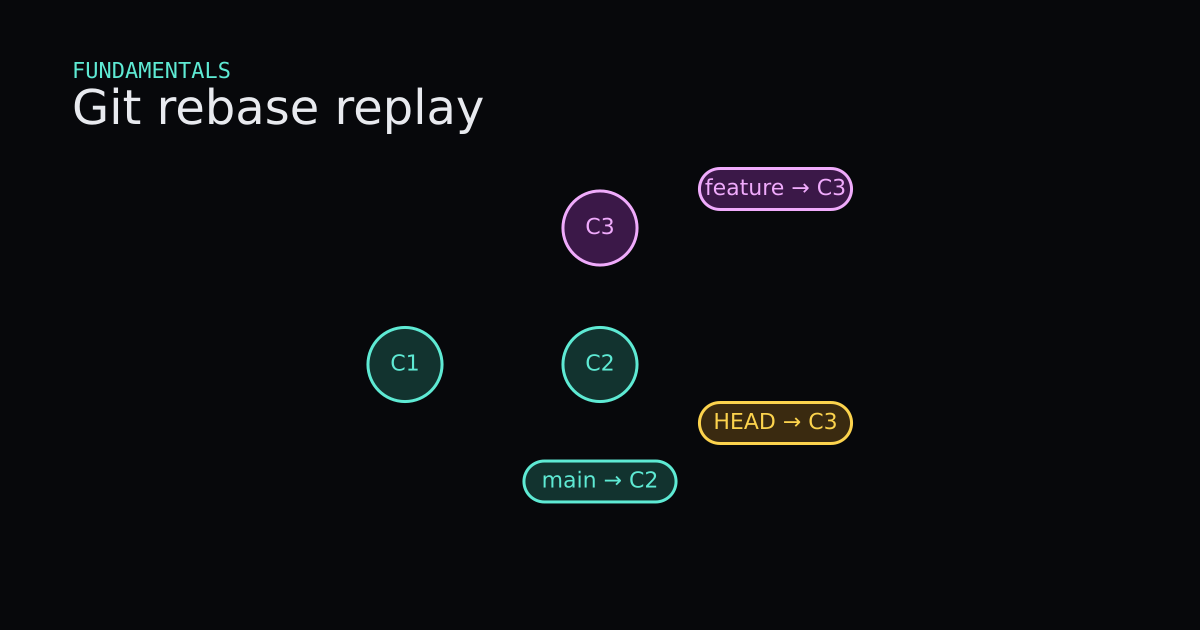
Commit C1 is the base. C2 is main's tip. C3 is feature's commit off C1. Press git rebase main to hide C3, show replayed commit C3 prime with parent C2, and slide the feature label to C3 prime. A token moves along the new parent edge. Reset restores the diverged setup.
- C1 is shared history. main advanced to C2 while feature still sits on C3 off C1.
- The feature label and HEAD still point at the old commit C3.
- git rebase main hides C3 and creates C3 prime with parent C2.
- C3 prime is a different id even if the patch text matches. feature now names it.
- Reset returns to the diverged graph with C3 on feature.
main at C2 · feature at C3
Code
Throwaway repo, unrelated files on each side so replay stays clean. Verified with Git 2.43.0.windows.1.
$ git init -b main
$ git commit -m "Base"                    # db7012d

$ git switch -c feature
$ git commit -m "Feature work"            # 29682a2

$ git switch main
$ git commit -m "Main work"               # cd9bbed

$ git log --oneline --graph --decorate --all
* 29682a2 (feature) Feature work
| * cd9bbed (HEAD -> main) Main work
|/
* db7012d Base

$ git switch feature
Switched to branch 'feature'

$ git rebase main
Rebasing (1/1)
Successfully rebased and updated refs/heads/feature.

$ git log --oneline --graph --decorate --all
* a501479 (HEAD -> feature) Feature work
* cd9bbed (main) Main work
* db7012d Base
Before rebase, feature tip was 29682a2. After rebase, feature tip is a501479. Same message and tree shape for that commit, different id. 29682a2 is orphaned unless something else still points at it.
If you had already git push origin feature at 29682a2, a normal push of a501479 would be rejected. git push --force-with-lease (or --force) tells the remote to move origin/feature to your new tip. That can discard the old tip from the shared remote—teammates need to reset or rebase their work. Use only when your team expects it.
$ # conflict during rebase: fix files, then
$ git add .
$ git rebase --continue

$ # or abandon
$ git rebase --abort
Code
Code
Read onlyTooling/Git/rebase-replay.sh
Read only
# Feature branched from an older main tip
git switch -c feature

# Main moved forward while you worked
git switch main
git commit -m "Main advance"

# Replay your commit onto today's main (new commit id)
git switch feature
git rebase main
Advantages and Disadvantages
+ Advantages
- Linear history can be easier to read in git log --oneline when reviews care about one commit per idea.
- Rebase onto main tests each replayed commit against the latest main tip, which sometimes catches integration bugs early.
- Interactive rebase lets you squash noise before sharing without extra merge nodes.
− Disadvantages
- Every replayed commit is a new id, which breaks anyone who based work on the old tips until they reconcile.
- Conflict stops mid-rebase feel like merge conflicts but the recovery commands are different (--continue versus merge --abort).
- Force-push after rebase is a policy event, not a personal preference, on shared branches.
Tips
- 01Before rebase, note the old tip hash with git rev-parse feature; reflog also keeps it if you need to compare.
- 02Rebase only branches you own or branches your team explicitly allows to rewrite.
- 03Prefer git push --force-with-lease over --force; it fails if origin moved since your last fetch.
- 04During conflicts, read git status; it tells you whether rebase is paused and which files need staging.
- 05If you already pushed the pre-rebase commits, tell teammates before you force-push the replayed branch.
- 06Compare merge versus rebase by drawing the graph: merge preserves the fork; rebase erases it from the feature line.
Series
- Part 1: Git, Part 1: Commits Are Snapshots, Branches Are Sticky Notes
- Part 2: Git, Part 2: A Merge Joins Two Lines of Snapshots
- Part 3: Git, Part 3: Restore, Revert, and Reset Move Different Things
- Part 4: Git, Part 4: A Remote Is Another Repository
- Part 5: Git, Part 5: Rebase Replays Commits Onto a New Parent
- Part 6: Git, Part 6: How a Team Agrees on History