Fundamentals
Git, Part 2: A Merge Joins Two Lines of Snapshots
Fast-forward only moves a label. When both sides advanced, merge writes a commit with two parents.
- Planted
- Last tended
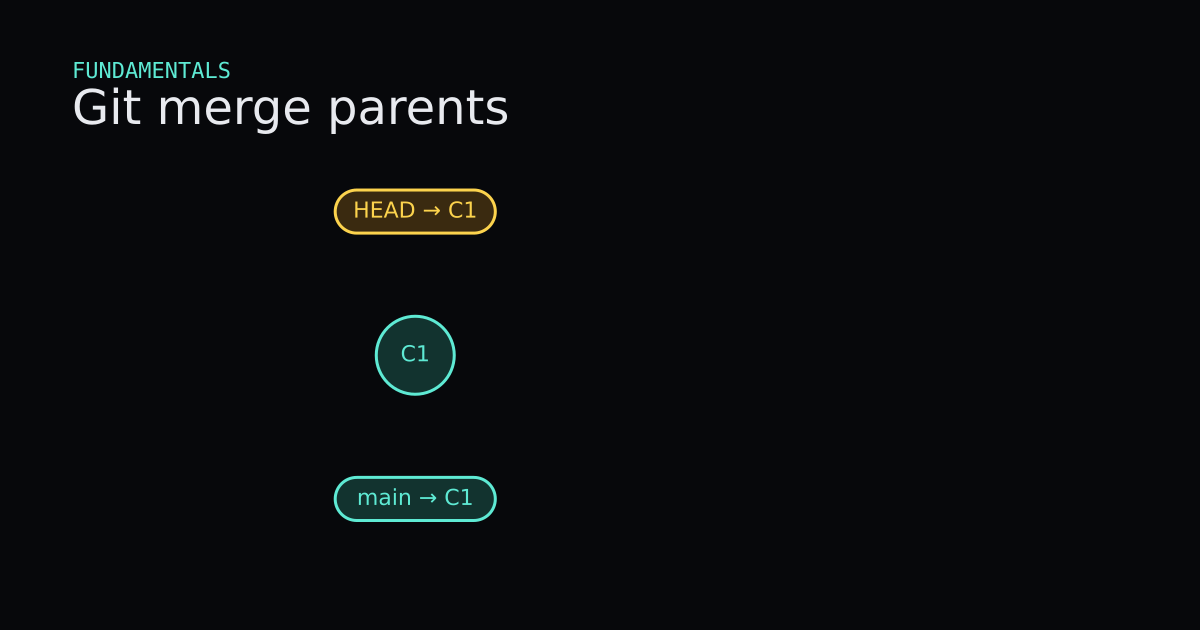
Part 1 said a branch is a sticky note on a commit. Part 2 asks what happens when two sticky notes move apart and you want one history again. After this post you should be able to look at a graph and tell a fast-forward from a merge commit, and predict which one git merge will produce before you run it.
This is Part 2 of a six-part series. Part 1 covered commits, branches, and HEAD. Undoing, remotes, rebase, and team workflows come later. We still skip branching-strategy opinions. The question here is mechanical: what objects and refs move?
What Is It?
A merge brings another line of commits into the branch you are on. Git finds the tips of both lines and the merge base (their best shared ancestor), then decides how to record the join.
When the branch you are on is an ancestor of the branch you merge in, Git does not need a new commit. It slides your branch label forward to the other tip. That is a fast-forward. Both names can end on the same commit. The parent list of that tip does not change. Officially, a fast-forward is still a kind of merge — it is the case where “only update the branch pointer” is enough.
When both sides have new commits since they split, a fast-forward is impossible. Git creates a merge commit: a normal snapshot whose commit object lists two parents. The first parent is the tip you were on. The second parent is the tip you merged in. The working tree and index become the combined result of both lines. In git log --graph, that commit is the place where the lines meet again.
git switch -c feature creates the sticky note and moves HEAD onto it in one step. Older Git used git checkout -b feature for the same job. After that, every git commit advances only the branch HEAD follows, which is how two lines grow apart in the first place.
I think of merge as answering one question: “Can my sticky note slide, or do I need a new photograph that points at both tips?” Once you can answer that from the graph alone, the command line output stops feeling arbitrary.
When Is It Used?
Use a merge when you want the current branch to include work that landed on another branch tip. Pulling from a remote often ends in the same choice: fast-forward if you have no local commits, or a merge commit if you do.
You do not need a merge commit every time. If main never moved while feature grew, a plain fast-forward is the default and it is honest about the history: one straight line. Reach for the two-parent picture when both sides changed, or when you deliberately pass --no-ff to force a merge commit even though a fast-forward was possible.
Conflicts are a separate problem. If both sides edited the same lines, Git stops and asks you to finish the snapshot by hand. This post stays on the graph shape when the merge completes cleanly. Part 3 will go deeper on recovering from a messy undo; here the only recovery tip you need is git merge --abort, which returns you to the pre-merge tip and clears the in-progress merge state.
In my teams I ask people to say the predicted shape out loud before they merge: “main is behind feature, so this should fast-forward,” or “both tips moved, so I expect a merge commit.” That one sentence catches most surprises.
Interactive Demo
Press Watch demo to walk the diverging path end to end. Watch three beats: feature grows C2 while main stays on C1, main grows C3 so the graph becomes a V, then git merge feature pulses merge node M and amber tokens travel both parent edges. The readout switches to merge: commit.
Reset and try the other path yourself: create feature, commit once, switch to main, merge immediately — the readout should say merge: ff, and main slides onto C2 with no M node. That contrast is the whole lesson.
Interactive Demo
git switch -c creates the branch and checks it out in one step. The tip starts at the commit you were on.
Start with commit C1 on main. Create feature and commit C2 on it. Switch back to main. Either merge for a fast-forward that moves main onto C2, or commit C3 on main first and then merge to create merge commit M with parents C3 and C2. Tokens slide along parent edges when M appears.
- C1 is shared history. main and HEAD start here.
- git switch -c feature creates the sticky note and moves HEAD onto it.
- A commit on feature grows C2. main is still on C1.
- Back on main. Merge now would fast-forward. Instead, commit on main to diverge.
- C3 lands on main. The histories no longer form a straight line.
- git merge feature creates M with two parents. Watch tokens travel both parent edges.
current: main · merge: none
Code
Two throwaway repos on the same machine. Line endings were left quiet with core.autocrlf false. Hashes will differ on your machine; the shapes will not. Verified with Git 2.43.0.windows.1.
Fast-forward
$ git init -b main
Initialized empty Git repository in .../git-merge-demo/.git/

$ # write readme note, then:
$ git add note.txt
$ git commit -m "Add note"
[main (root-commit) 51520d3] Add note
 1 file changed, 1 insertion(+)

$ git switch -c feature
Switched to a new branch 'feature'

$ # add a feature line, then commit
$ git commit -m "Feature work"
[feature 197e29f] Feature work
 1 file changed, 1 insertion(+)

$ git log --oneline --graph --decorate --all
* 197e29f (HEAD -> feature) Feature work
* 51520d3 (main) Add note

$ git switch main
Switched to branch 'main'

$ git merge feature
Updating 51520d3..197e29f
Fast-forward
 note.txt | 1 +
 1 file changed, 1 insertion(+)

$ git log --oneline --graph --decorate --all
* 197e29f (HEAD -> main, feature) Feature work
* 51520d3 Add note

$ git log -1 --format=parents:%P%ncommit:%h
parents:51520d3577597e12f70b93cc6ec839153e38d470
commit:197e29f
The word Fast-forward is the tell. No new commit id appeared. main and feature both name 197e29f, and that commit still has a single parent. If you re-run git merge feature now, Git reports that you are already up to date — there is nothing left to slide.
Diverged histories
Use different files on each side so the merge can finish without a conflict.
$ git init -b main
$ git commit -m "Add readme"          # 53fd2ac on main

$ git switch -c feature
$ git commit -m "Add feature.txt"     # 925c8cc on feature

$ git switch main
$ git commit -m "Add main.txt"        # 6e2a7d2 on main

$ git log --oneline --graph --decorate --all
* 925c8cc (feature) Add feature.txt
| * 6e2a7d2 (HEAD -> main) Add main.txt
|/
* 53fd2ac Add readme

$ git merge feature -m "Merge branch feature"
Merge made by the 'ort' strategy.
 feature.txt | 1 +
 1 file changed, 1 insertion(+)
 create mode 100644 feature.txt

$ git log --oneline --graph --decorate --all
*   6e5a47f (HEAD -> main) Merge branch feature
|\
| * 925c8cc (feature) Add feature.txt
* | 6e2a7d2 Add main.txt
|/
* 53fd2ac Add readme

$ git cat-file -p HEAD
tree 68a7166b8865fecca5a891a9e7b038f668d3418f
parent 6e2a7d2c24b8eb2bd793deaa20e07598ab6e70f6
parent 925c8cc2e29ed449ffaed9ebd6b8b828c7d60f3b
author Dev Example <[email protected]> ...
committer Dev Example <[email protected]> ...

Merge branch feature
Two parent lines means a merge commit. The first parent is the tip of main before the merge (6e2a7d2). The second is the tip of feature (925c8cc). I think reading git cat-file -p HEAD once makes the demo stick better than any diagram alone.
If you want a merge commit even when a fast-forward is possible, pass --no-ff. That is a policy choice about how the graph should look, not a different merge algorithm. Default git merge still fast-forwards when it can. Config merge.ff=false makes --no-ff the default for your machine; leave that alone until your team agrees on a history style.
Code
Code
Read onlyTooling/Git/merge-session.sh
Read only
# Shared starting commit
git init -b main
echo shared > readme.txt
git add readme.txt
git commit -m "Add readme"

# Feature advances alone (fast-forward candidate)
git switch -c feature
echo from feature > feature.txt
git add feature.txt
git commit -m "Add feature.txt"

# Main advances too (histories diverge)
git switch main
echo from main > main.txt
git add main.txt
git commit -m "Add main.txt"

# Merge joins the two tips with a two-parent commit
git merge feature -m "Merge branch feature"
Advantages and Disadvantages
+ Advantages
- Fast-forward keeps history as one line when that is what actually happened, so readers are not hunting for an empty merge node.
- A merge commit records both tips explicitly, so you can see where the lines joined months later in git log --graph.
- git switch -c creates and checks out a branch without inventing a second workflow for beginners.
− Disadvantages
- Two merge outcomes for one command confuse beginners until they check ancestry first.
- A conflict stops the merge mid-flight; the graph is incomplete until you finish or abort.
- Forcing --no-ff everywhere adds nodes that do not encode extra file changes, only structure, which can make blame and bisect noisier.
Tips
- 01Before merging, draw the two tips and their shared ancestor. If your tip sits on that ancestor path, expect a fast-forward.
- 02Read the first line of git merge output. Fast-forward versus Merge made by tells you which shape you got without opening a GUI.
- 03Use git log --oneline --graph --decorate --all after a merge. The backslash join is the merge commit; a single straight line after Updating .. is a fast-forward.
- 04Inspect parents with git cat-file -p HEAD or git log -1 --format=%P when the graph is unclear. Two hashes mean two parents.
- 05If a merge stops on conflicts, fix files, git add them, then git commit to finish the merge commit. Or run git merge --abort to return to the pre-merge branch tip; that clears only the in-progress merge, not earlier commits on the branch.
- 06Keep Part 1 in mind: merge moves branch labels and maybe adds one commit. It does not copy a folder of files, and HEAD still names which tip you stand on.
Series
- Part 1: Git, Part 1: Commits Are Snapshots, Branches Are Sticky Notes
- Part 2: Git, Part 2: A Merge Joins Two Lines of Snapshots
- Part 3: Git, Part 3: Restore, Revert, and Reset Move Different Things
- Part 4: Git, Part 4: A Remote Is Another Repository
- Part 5: Git, Part 5: Rebase Replays Commits Onto a New Parent
- Part 6: Git, Part 6: How a Team Agrees on History
Next up
Next in the path: Git, Part 3: Restore, Revert, and Reset Move Different Things